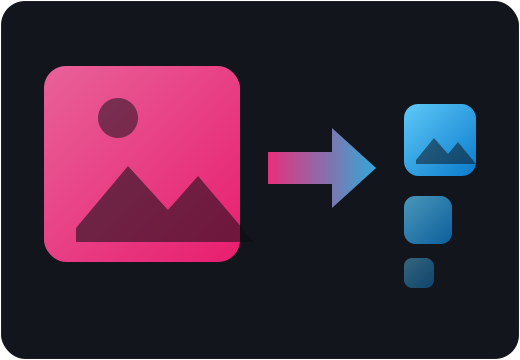
Small
Smaller files load faster. Lighterpix strips away bytes you cannot see and keeps the detail you can.
 Lighterpix
In-browser image optimizer
Drop a file and compare JPEG, WebP, AVIF, JPEG XL and PNG side by side. Everything runs on your device, so your images never touch a server.
Drop a file anywhere on this page, or paste with Ctrl+V.
Nothing is uploaded. Nothing leaves this tab.
Start with a sample and watch the file size fall.
Three steps, and none of them involve a server.
Pick a file, drag it anywhere onto the page, or paste it from the clipboard. Nothing is sent anywhere — the file is read straight from your disk into the tab.
JPEG, WebP, AVIF, JPEG XL and PNG run side by side on the same picture, so you can weigh size against quality instead of guessing.
Adjust quality, resize, or reduce the palette if you want to push further, then download the result. The original file is never modified.
One photo, four encoders, measured in this app — not quoted from a blog post.
PNG · 1.85 MB — lossless — 3× larger than the JPEG it started from.
Quality scales are not comparable across encoders: 80 means a different trade-off in every one of them, which is why they are on screen together. Measured 2026-11-05 on a 2019 MacBook Pro.
Five encoders, one picture, a live size for each.
| Format | Best for | Typical saving | Works in |
|---|---|---|---|
| JPEG | Photographs, when everything must open | 40–70% | Every browser |
| WebP | Photos and screenshots, safe default | 50–80% vs JPEG | All modern browsers |
| AVIF | Photos at low bitrates, smallest files | 20–50% vs WebP | Chrome, Firefox, Safari 16+ |
| JPEG XL | Archival copies that can re-encode losslessly | 20–40% vs JPEG | Newer Chrome, Firefox and Safari builds |
| PNG | Screenshots, flat colour, transparency | 5–60% | Every browser |
Savings depend on the picture. Compare the two panes before you save — that is the whole point of the side-by-side view.
Smaller files load faster. Lighterpix strips away bytes you cannot see and keeps the detail you can.
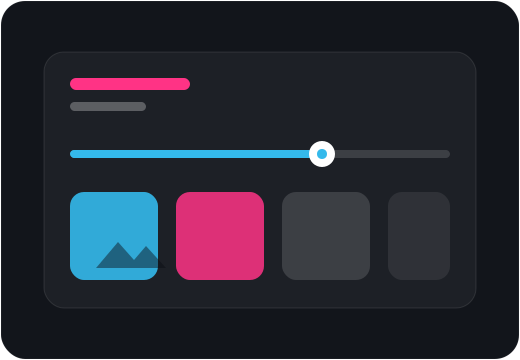
Open, compare, save. Then dig into the encoder settings whenever you want to squeeze out more.
No uploads, no accounts, no round-trips. Compression is done by WebAssembly running inside this tab.
The things people ask before the first drop.
No. Decoding, processing and encoding all happen inside your browser tab using WebAssembly. There is no upload endpoint, no queue and no copy of your file anywhere else. You can watch the network panel and see for yourself.
Yes — no account, no watermark, no export limit and no paid tier. Because compression runs on your machine there is no server bill to pass on.
Start with WebP for photographs and screenshots; it is safe in every modern browser. Reach for AVIF when you want the smallest possible file and can accept slower encoding. Keep PNG for flat-colour graphics and anything that needs transparency. JPEG is still the format that opens on absolutely everything.
Yes. After the first visit the app and its encoders are cached, so it keeps working with the network switched off — useful on a plane, or when you would rather not be online at all.
The comparison view works on one image at a time, which keeps both previews fast. Because nothing is uploaded, batching is just a matter of dropping the next file.
A lot, usually — 70% or more is common for a phone photo saved as JPEG at quality 85. It depends on the content: photographs compress well, sharp text in a screenshot less so. Lower the quality slider and watch the live preview until artefacts show up, then stop.
Downscaling always throws pixels away, but doing it before encoding usually produces a smaller and sharper file than letting the browser scale a larger image at display time. Upscaling cannot add detail — it only makes files bigger.
Any current Chrome, Edge, Firefox or Safari. Multi-threaded encoding needs cross-origin isolation, which this site enables; without it the encoders fall back to a single thread and simply take longer.